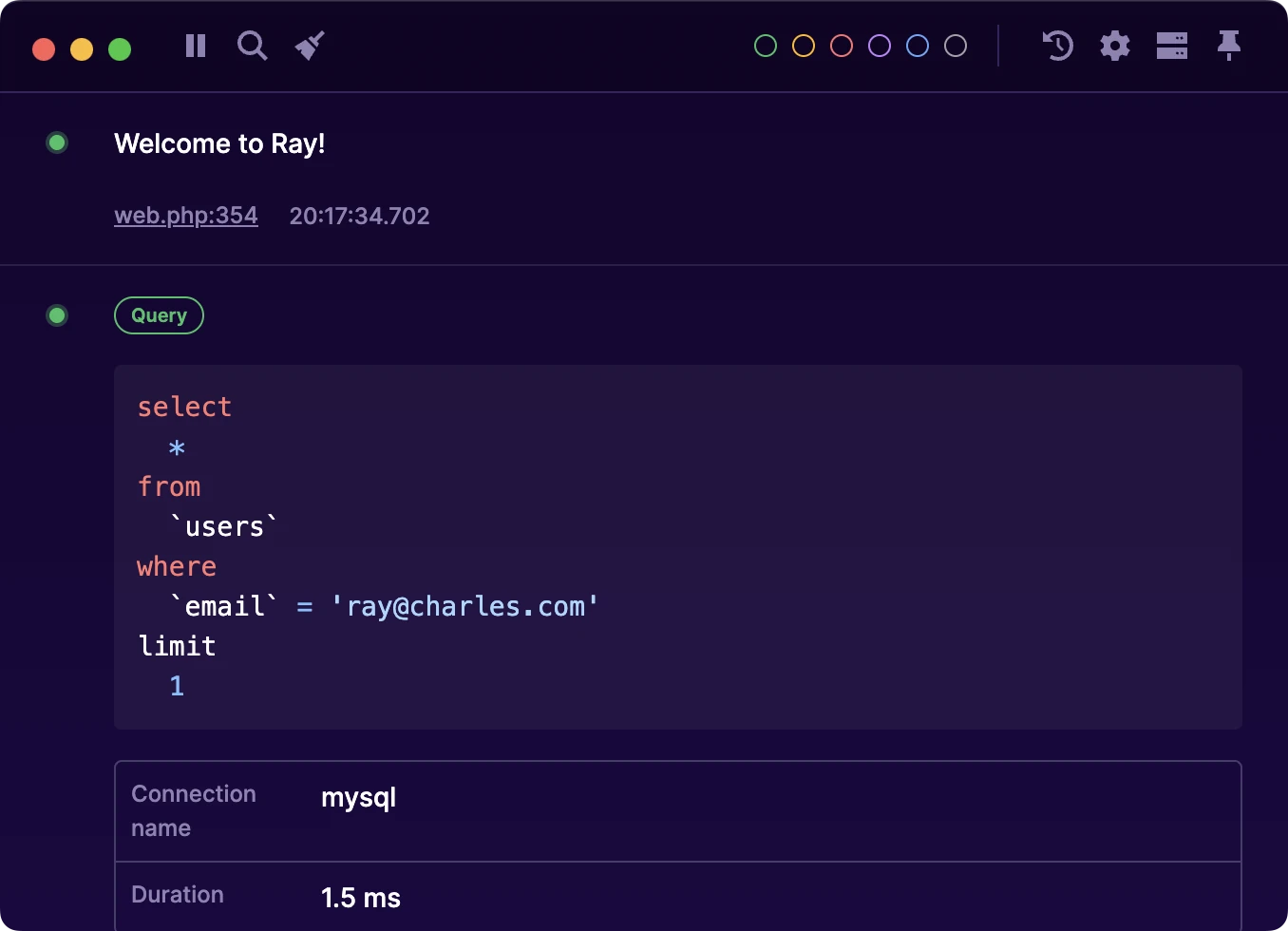
Remote debugging
When connected to a remote server, Ray displays the output of ray calls from your server. The output is transferred securely via SSH.
#Create a remote connection
Click the "Servers" icon in the top right of the Ray app, then click "Add new server".
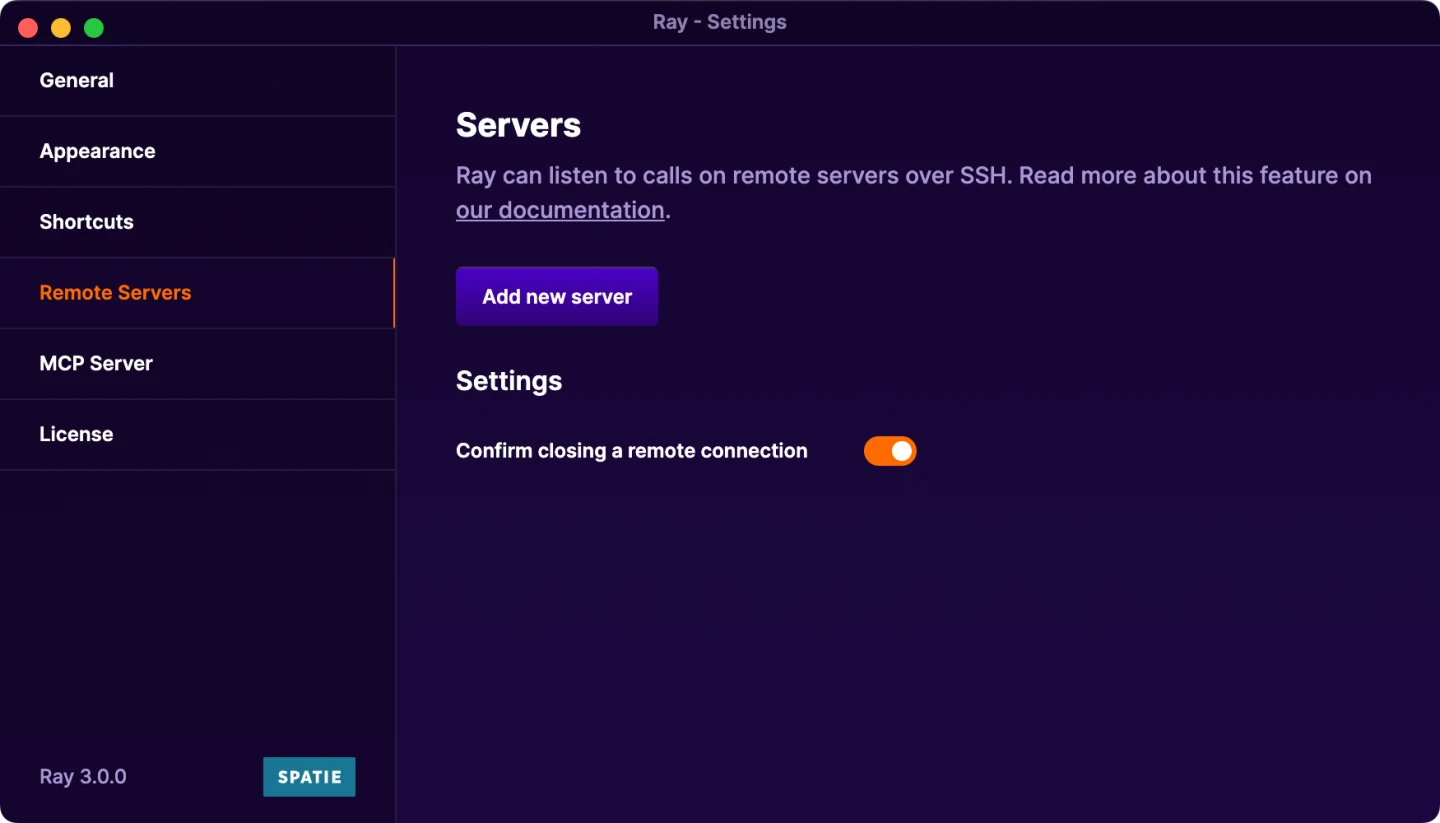
Fill in your server details, choose your SSH authentication method, and click "Connect".
If Ray can't connect, it will display an error explaining why.
#Using remote connections
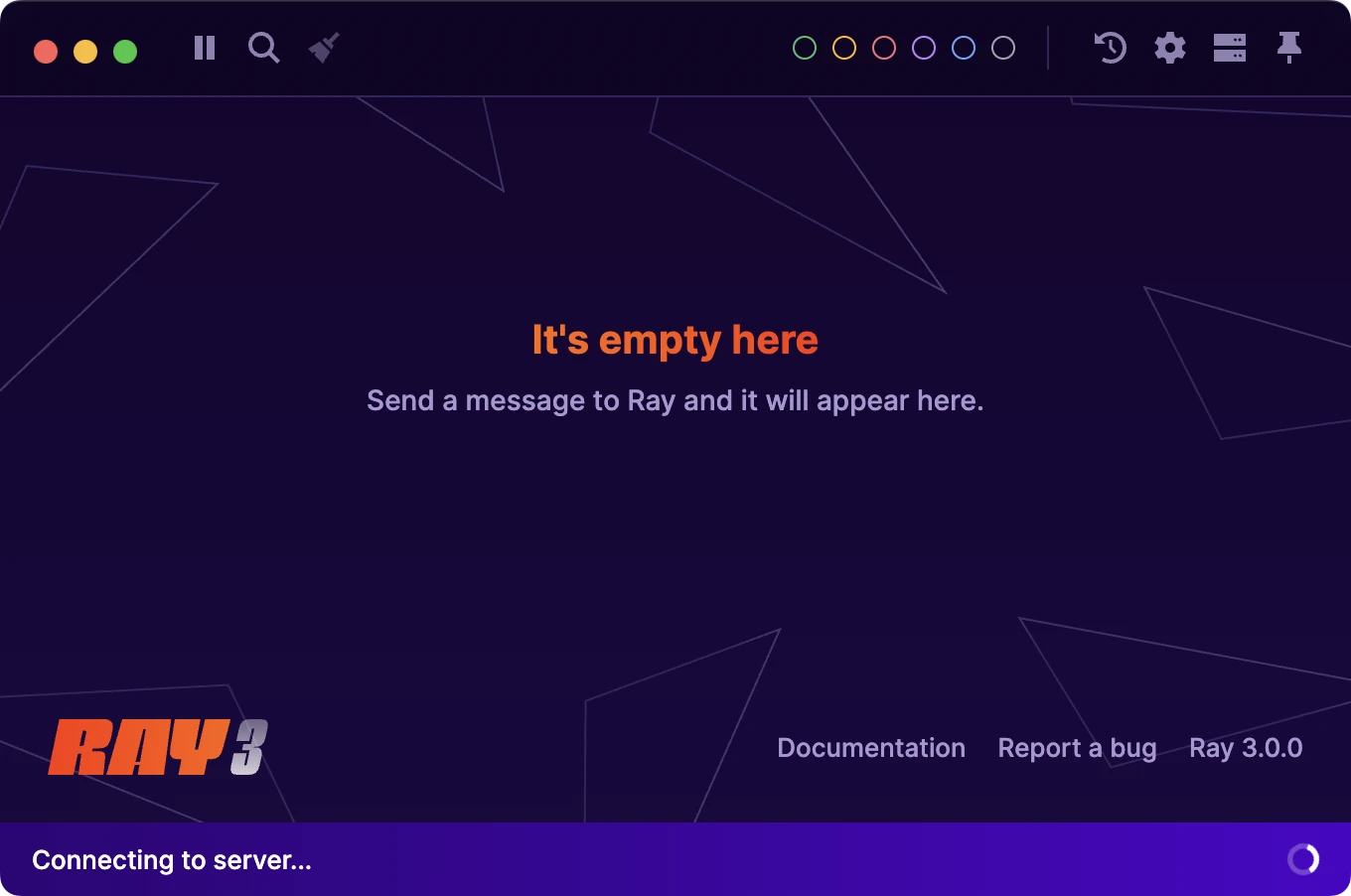
Each remote server has its own window, separate from your local debugging output. You can identify it by the bar at the bottom of the window.
Any ray calls from your remote server appear in this window. The functionality is identical to local debugging.
If you are connecting to a Docker container on a remote server (see Docker configuration), you may need to enable
GatewayPorts yesin the server's/etc/ssh/sshd_config. Remember to restart the sshd daemon to apply your changes.