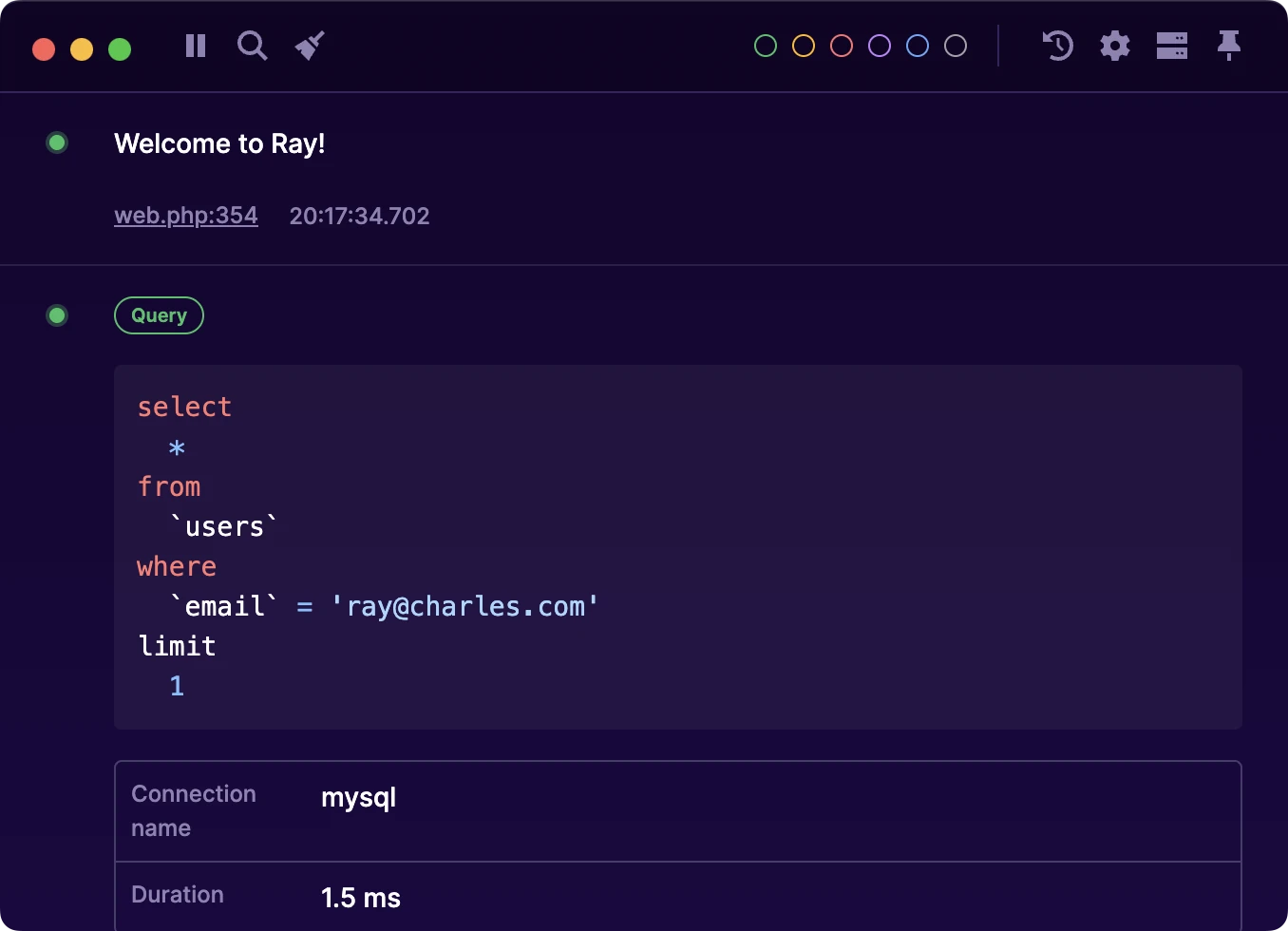
Using Ray
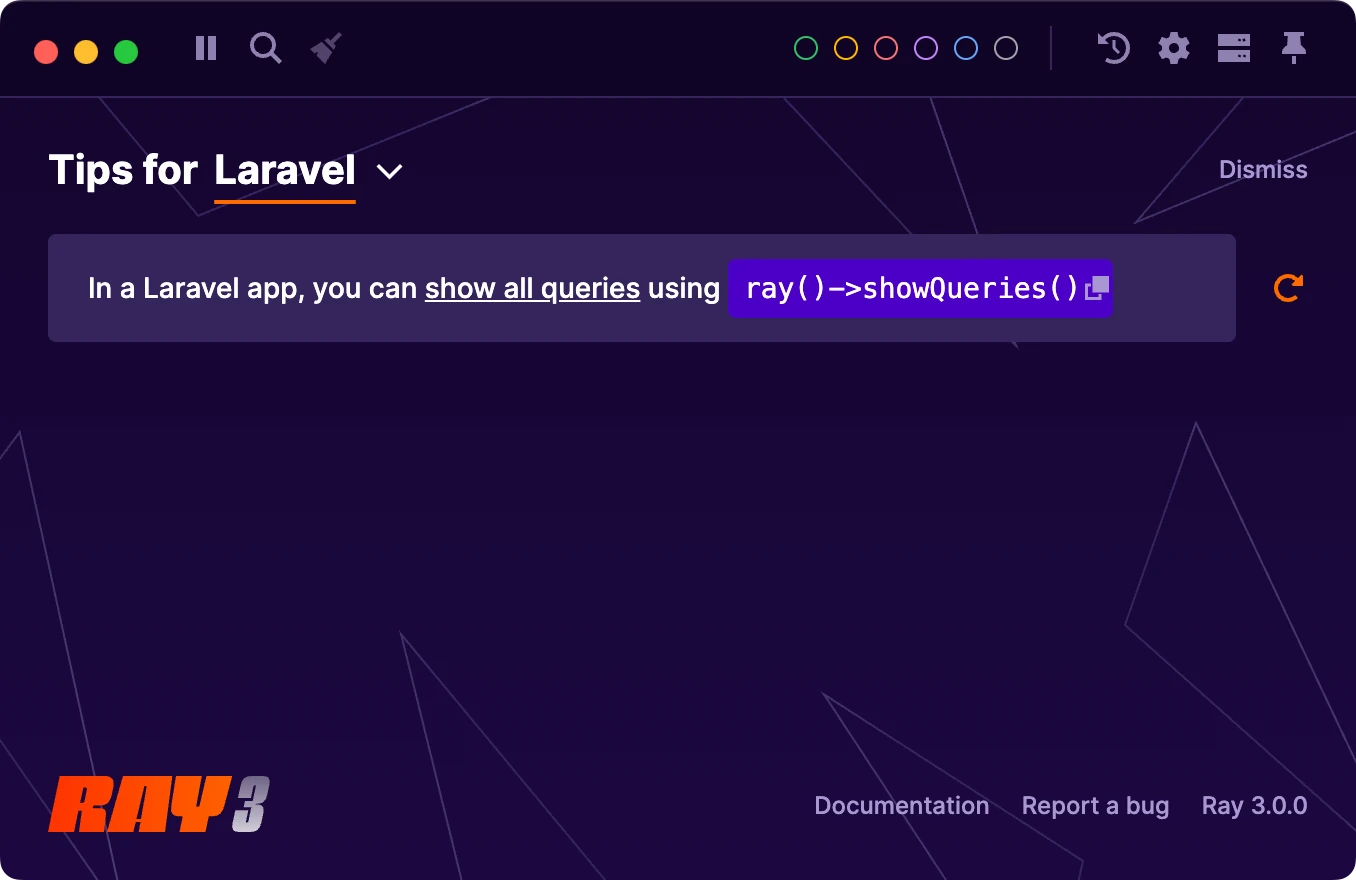
When you first open Ray, you're greeted by a friendly welcome screen with some useful tips. This screen will appear each time you open the app and will disappear when you send messages.
#The interface
Here is an overview of every item in the menu bar in the main window:
- Pause/Resume: Temporarily stop accepting new messages.
- Search: Find messages containing specific text.
- Clear screen: Move all current messages to the archive.
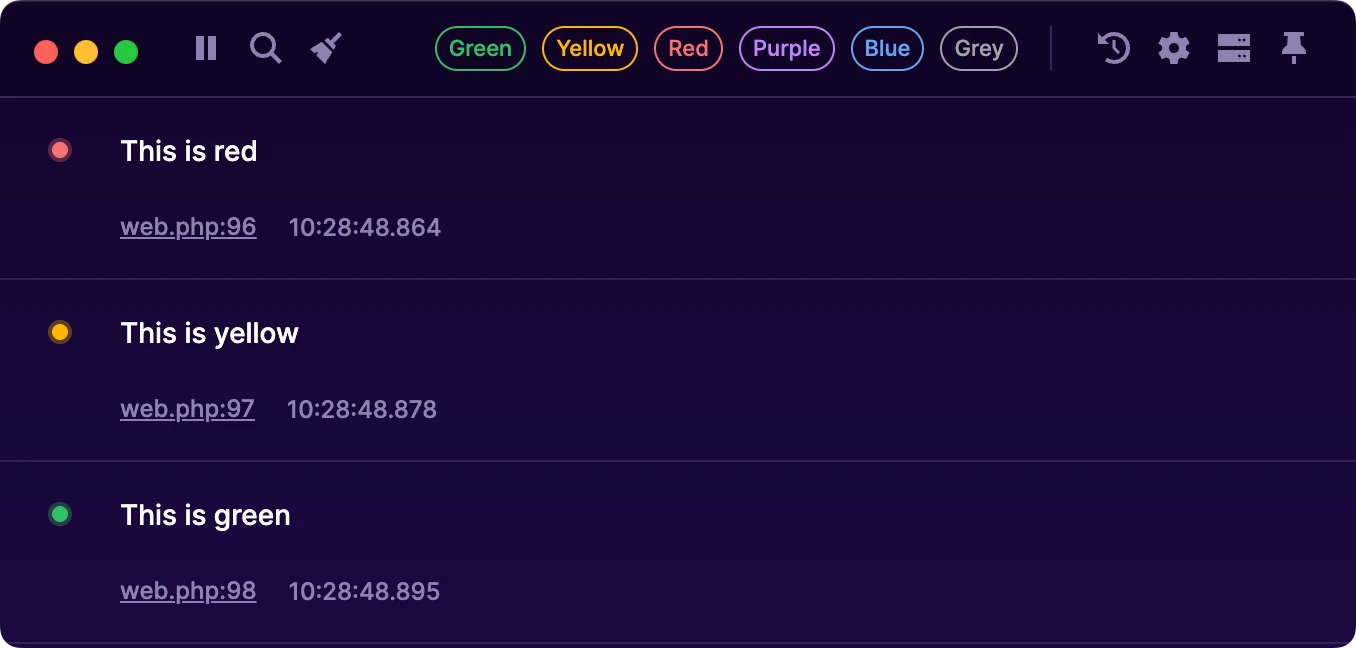
- Color labels: Filter messages by color (e.g. messages sent with
ray('hello')->color('red')). - Archive: View all archived messages.
- Settings: Configure Ray to your preferences.
- Servers: Connect directly to configured remote servers.
- Pin: Keep the Ray window on top of other windows.
#Clearing the screen
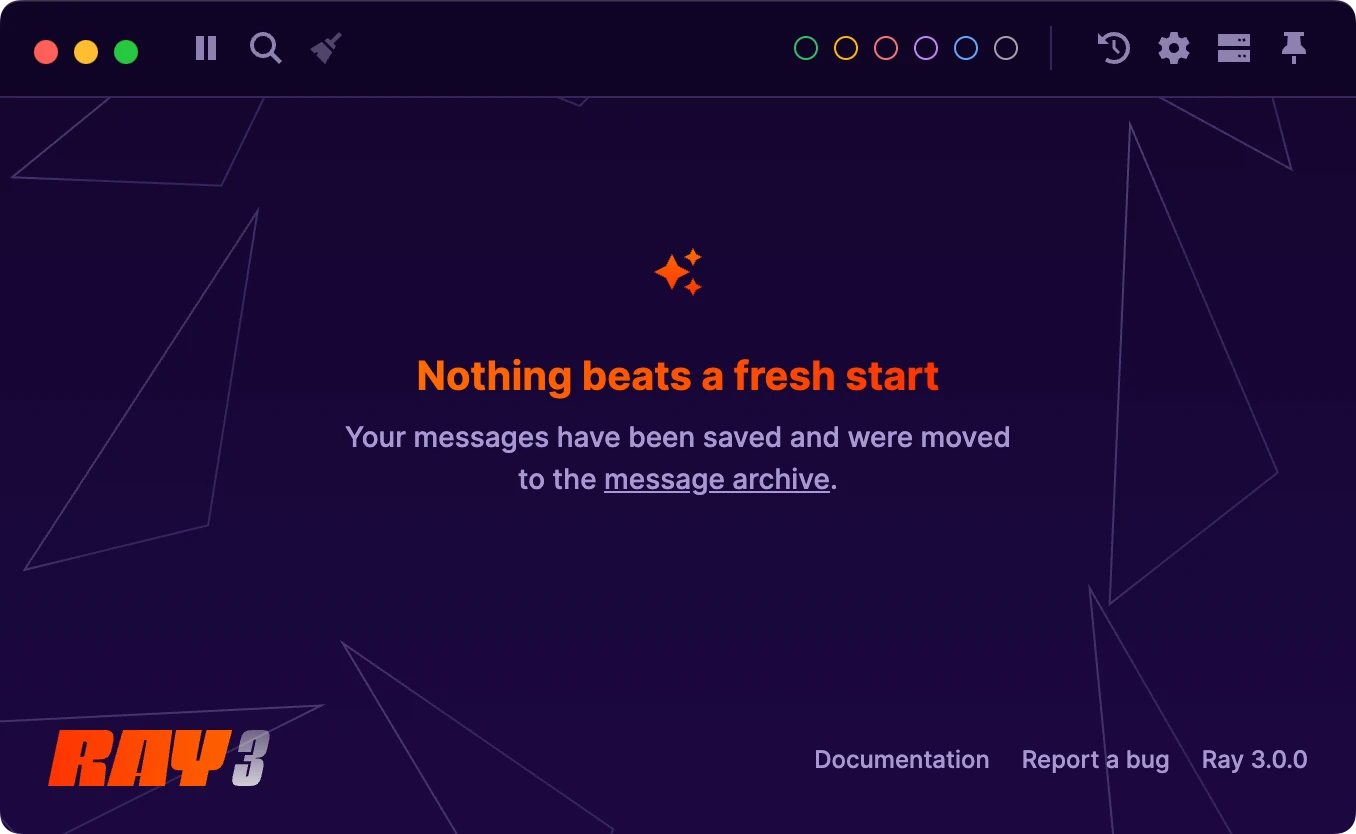
When debugging, it is often useful to start fresh between attempts. To clear the screen, click the 'Clear screen' icon (the broom). To archive your existing messages, use the ray()->newScreen() function in your app, or press the default shortcut: Cmd+K on a Mac or Ctrl+K on Windows.
#Archiving messages
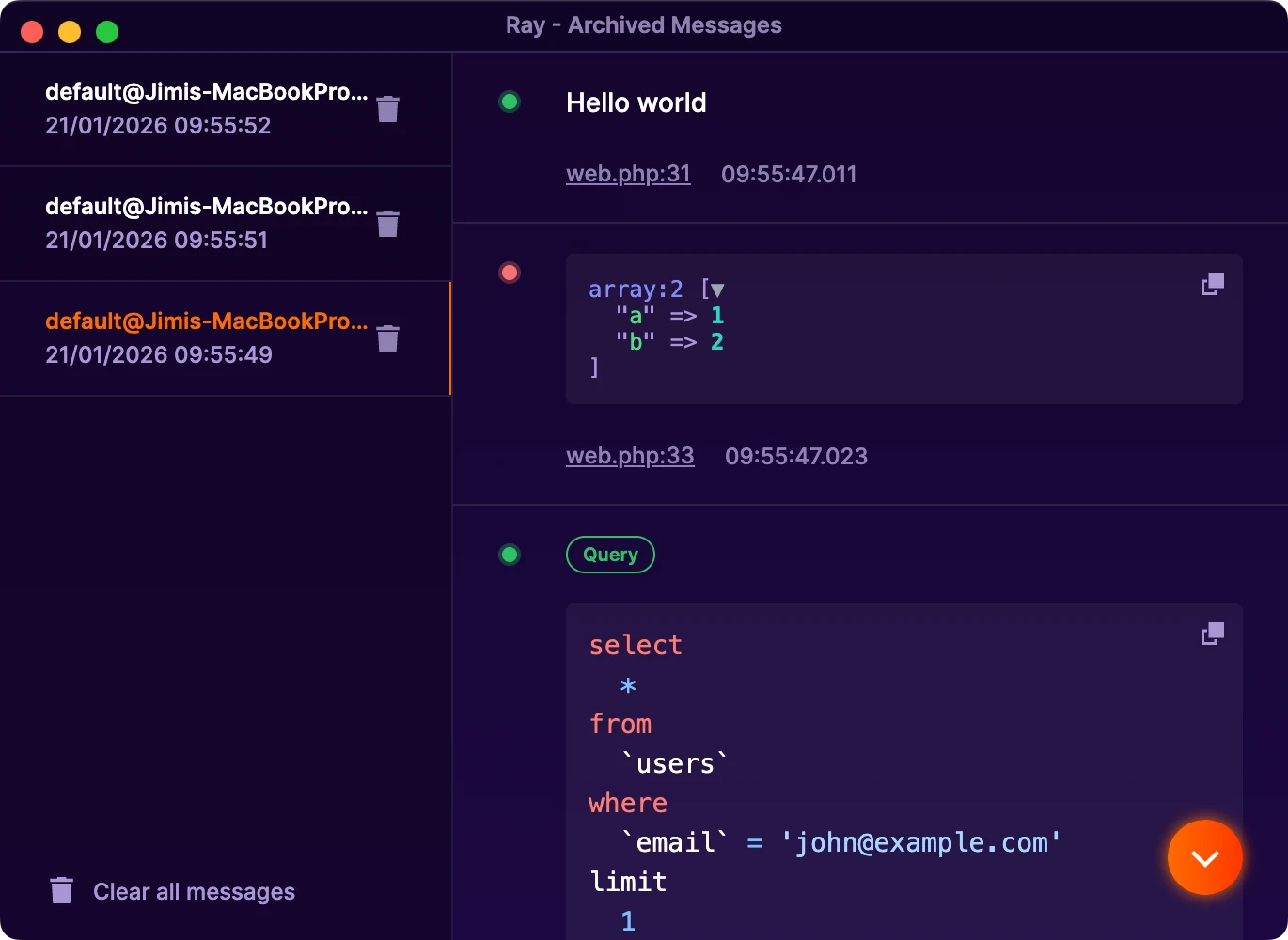
When you clear the screen, your messages are automatically saved and sent to the archive. Messages remain functional and there is no limit to how many can be saved.
#Filter messages by color
Give messages a color using color functions (e.g. $ray->red() in PHP), then use the color filter in the menubar to show only messages of a specific color.
#Filter messages by type
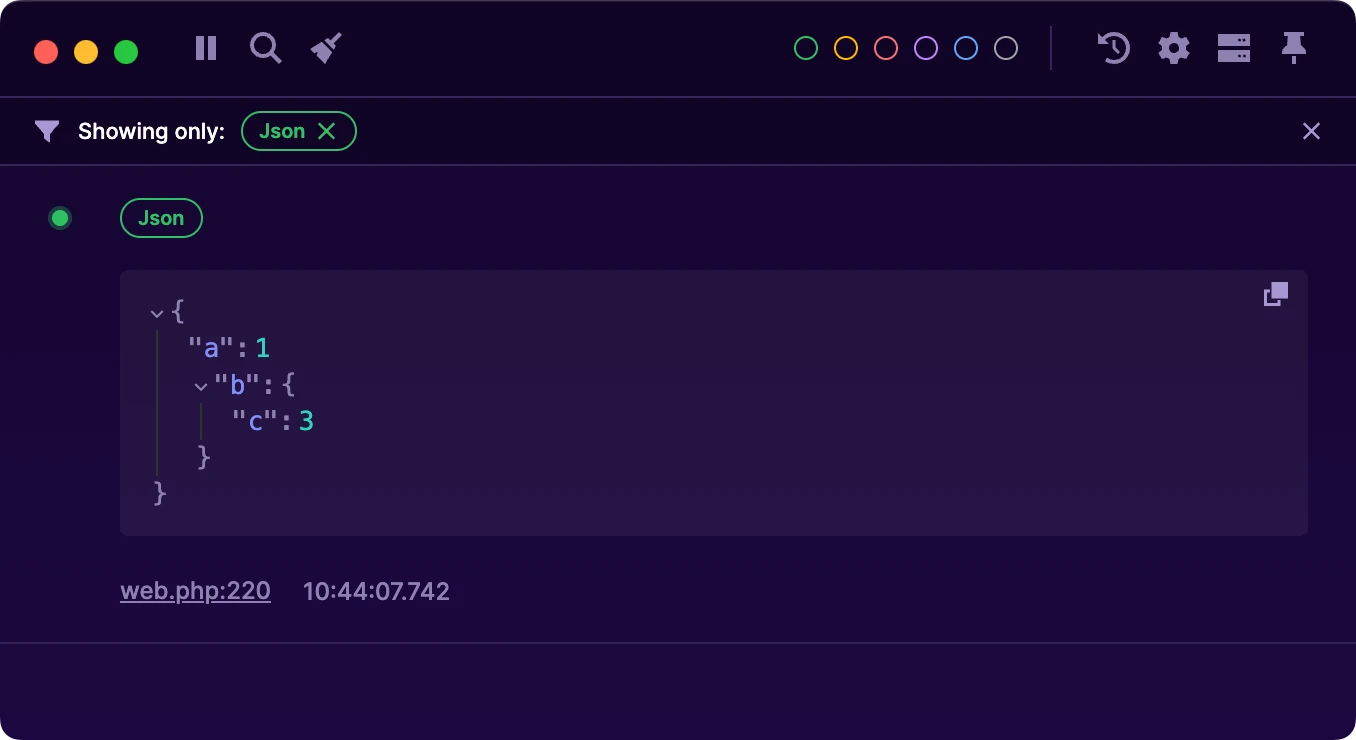
Some messages types are automatically assigned a badge. You can filter your window to show only these messages by simply clicking on the badge.
#Settings
To make Ray fit your workflow, it's worth configuring a few settings.
#Set up your preferred IDE
Each message shows where it got called from. Clicking on the link will take you straight to the relevant line in your code. Ray needs to know what IDE you use, which you can select from the settings menu. We support PhpStorm, Visual Studio Code, Cursor, Zed and Sublime, and others.
#Review and customize shortcuts
Ray has a few global shortcuts and hotkeys that you can customise. Useful shortcuts to review are:
- Showing or hiding the Ray window
- Pinning and unpinning the Ray window
- Clearing all messages
- Customising the layout of your messages at any time
#Appearance
Ray comes with a few built-in themes and some accessibility options.
By default, Ray uses the dark 'Midnight' theme. You can choose to synchronise the theme with your OS's settings. You can also choose to display names for the labels instead of using only color.